
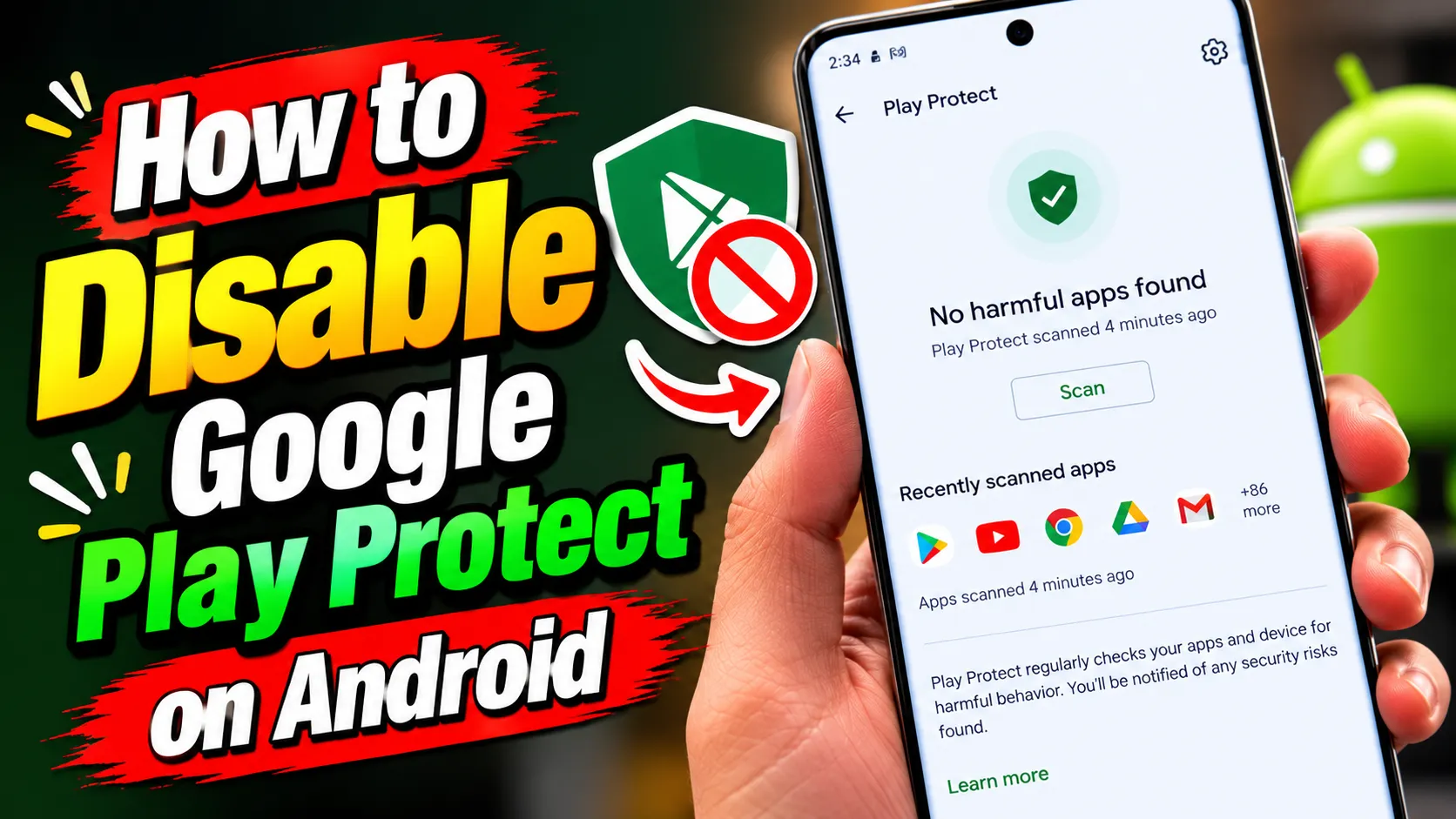
How to Disable Google Play Protect on Android
Google Play Protect is a built-in Android security feature that scans apps for potentially harmful behavior. It helps protect your device by checking apps installed through the Google Play Store and, in some cases, apps downloaded from other sources.
Sometimes, Play Protect may display a warning when you try to install an APK downloaded from a third-party website. If you trust the source and understand the potential risks, you may want to adjust Play Protect settings temporarily.
In this guide, we will explain how to disable Google Play Protect on Android, how to turn it back on, and what you should know before changing your security settings.
What Is Google Play Protect?
Google Play Protect is a security service available on Android devices with Google Play services. It checks apps for potentially harmful software and can warn you about suspicious applications.
Its main features include:
- Scanning apps for potentially harmful behavior.
- Warning users about suspicious or unsafe applications.
- Checking apps installed from outside the Google Play Store.
- Helping detect and prevent the installation of harmful apps.
- Providing additional protection against certain security threats.
Google Play Protect works automatically in the background, so most users do not need to configure it manually.
How to Disable Google Play Protect on Android
Follow these steps to access Google Play Protect settings on your Android smartphone.
Step 1: Open the Google Play Store
Unlock your Android phone and open the Google Play Store app.
Make sure you are using the official Play Store application on your device.
Step 2: Open Your Profile Menu
Tap your profile picture in the upper-right corner of the screen. A menu containing your Google Play account and settings will appear.
Step 3: Select Play Protect
Tap Play Protect to open the security section.
Here, you can view your device’s security status and access the available scanning options.
Step 4: Open Play Protect Settings
Tap the settings gear icon in the upper-right corner of the Play Protect screen.
Depending on your Android version, you may see options such as:
- Scan apps with Play Protect
- Improve harmful app detection
Step 5: Review the Available Security Options
If you choose to turn off app scanning, switch off the relevant setting and confirm your choice if prompted.
The exact options and confirmation screens may vary depending on your Android version, Google Play Store version, and device manufacturer.
Important: Disabling scanning reduces protection against potentially harmful applications. It is safer to keep Google Play Protect enabled and use it to check apps before installation.
How to Turn Google Play Protect Back On
If you temporarily changed your settings, you should restore them after troubleshooting.
- Open the Google Play Store.
- Tap your profile picture.
- Select Play Protect.
- Tap the settings gear icon.
- Turn on the available app-scanning and harmful-app-detection options.
Once enabled, Play Protect can resume its normal security checks.
Why Does Google Play Protect Block APK Files?
Android users sometimes encounter Play Protect warnings while installing APK files downloaded from websites outside the Google Play Store.
Common reasons include:
- The app is not distributed through the Play Store.
- The application requests sensitive permissions.
- The app exhibits behavior associated with potentially harmful software.
- Google cannot verify the app’s safety or developer reputation.
- The application contains suspicious code or other security risks.
A warning does not automatically mean every APK is malicious. However, it should not be ignored because some APK files can contain malware, spyware, or code that steals personal information.
Is It Safe to Disable Google Play Protect?
Disabling Google Play Protect is generally not recommended. It removes or reduces an important layer of protection that helps identify potentially harmful applications.
Before installing an APK, consider these precautions:
- Download applications only from sources you trust.
- Verify the developer and application name.
- Avoid APK files that request unnecessary permissions.
- Do not install modified apps that request banking credentials, passwords, or sensitive personal information.
- Keep Android and your other security features updated.
- Re-enable Play Protect after troubleshooting.
If an app continues to trigger a warning, consider avoiding the installation until you can verify that the file is legitimate.
Frequently Asked Questions (FAQs)
1. Can I disable Google Play Protect on any Android phone?
Many Android devices with Google Play services provide Play Protect settings. The available options may differ by device, Android version, or account restrictions.
2. Why can’t I find the Play Protect settings?
Open the Google Play Store, tap your profile picture, and select Play Protect. The settings gear is usually available on that screen. Update the Play Store if the interface differs.
3. Does disabling Play Protect delete my apps?
Turning off Play Protect scanning does not, by itself, delete installed apps. However, Google Play Protect may take other actions when it identifies a potentially harmful application.
4. Will disabling Play Protect make APK installation possible?
Not necessarily. APK installation can also be affected by Android’s app-installation permissions, device policies, compatibility restrictions, or other security checks. Disabling Play Protect does not bypass every restriction.
5. Should I leave Google Play Protect disabled?
No. Keeping Play Protect enabled is the safer option for most Android users. If you changed the setting temporarily, turn it back on when you finish troubleshooting.
Final Words
Google Play Protect helps Android users identify potentially harmful applications and improve device security. You can access its settings through the Google Play Store and review the available scanning options.
If you are installing an APK from outside the Play Store, verify the file and its source before proceeding. For everyday use, keeping Google Play Protect enabled is the best way to maintain an additional layer of protection on your Android device.
Stay safe and explore more Android tutorials, APK guides, and app-related tips on MODPLAYS.